A permitted session
If the Chromebook belongs to a school or workplace, its administrator may control sites and browser features. Use the device within those rules. The word “unblocked” on a game page cannot remove a management restriction.
To try Slope on a Chromebook, check the permitted connection, the browser’s graphics support, and keyboard focus. Start in one tab with the built-in keyboard, then investigate the first stage that fails.
If the Chromebook belongs to a school or workplace, its administrator may control sites and browser features. Use the device within those rules. The word “unblocked” on a game page cannot remove a management restriction.
The home build needs WebGL and WebAssembly. A browser can recognize those technologies while a device still has graphics or memory problems. Reaching the page is only the beginning of the check.
Open the player, let it load, and click inside it before testing Left/Right Arrow or A/D. If the page moves instead of the ball, review focus before changing the device’s settings.
Go to Slope Unblocked and use Play. Keep the first load in one tab; repeated reloads can restart work that has not finished.
Try the normal 16:9 player first. Use its Fullscreen button if you need more visible space, following the browser’s exit prompt. This changes the view, not the control method.
Choose arrows or A/D and make a short input on usable floor. Keep the same pair while learning. The input reference lists what belongs to the original game.
| State | Reasonable next check | Avoid assuming |
|---|---|---|
| Page explicitly reports a policy restriction | Use an approved device or ask the administrator about permitted use. | That a game setting can override management. |
| Page opens, but the game never finishes loading | Follow the loading-stage guide. | That a reachable article guarantees loaded game files. |
| Game runs, but arrows scroll | Click the play area and inspect focus. | That the whole keyboard is faulty. |
| Game moves unevenly | Compare performance symptoms. | That faster tapping will repair missing frames. |
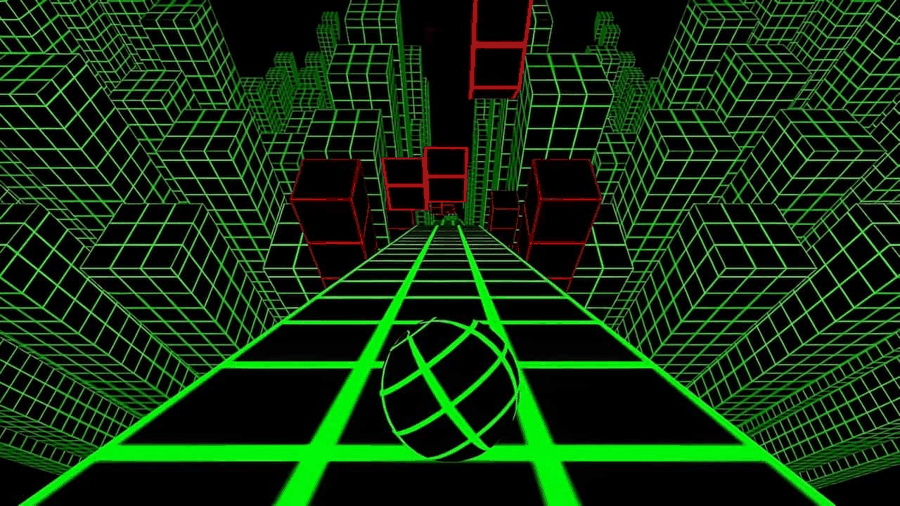
A similarly named app or a different runner is not evidence that this browser build works. Confirm the original scene and steering method, then describe the actual loading or input behavior on your device. That makes a useful report if the problem persists.
Use Reset player for one fresh attempt if the local game stalls. It reloads the page, so do not press it during a run you want to keep. If the same failure returns, record the browser message and whether it appeared before or after Play.
There is no need to put a managed Chromebook into a different operating mode just to diagnose a game page. Broad resets can remove useful settings without answering the original symptom. Use the minimal browser preflight and prepare a precise report on Contact if a page defect remains.