Slope not loading: find the last working stage
A page that opens, a loading counter that moves, and a visible game scene are three different milestones. Find the last one you reached before choosing a retry.
Follow the load from the page to the game
Use the last completed stage to choose the next check. If a visible scene responds to its start prompt but not your steering keys, continue with input checks. If no scene appears after loading, keep investigating initialization.
Try the checks in order
Confirm that Play was pressed
The picture on the cover is a poster, not an already running game. Press Play once and look for the status beneath the player to change.
Watch for a changing status
Give an active first load time to finish. Repeated clicks cannot accelerate missing files, and resetting the page restarts the attempt. If a specific compatibility message appears, record it.
Check the required features
The original local build needs WebGL and WebAssembly. Use the browser preflight for a small feature check. Detection is useful, but it is not proof that this larger game will initialize.
Make one fresh attempt
For original Slope, use Reset player, then Play; this reloads the home page and ends its current runtime. On a related-game page, use Close game, then Play instead. If the same failure returns, stop repeating the reset and note the last stage you reached.
Turn the screen state into a useful note
| What you see | What to record | Where to continue |
|---|---|---|
| The cover never changes after Play | Whether buttons respond and JavaScript is allowed | Report a page interaction problem |
| Progress appears, then a long wait | Last visible status and whether it changes | Check connection and initialization conditions. |
| A graphics or WebAssembly message | The exact message, not a guessed cause | Feature requirements |
| Black area after loading | Whether audio, focus, or a canvas appears | Blank-scene diagnosis |
The target is a usable game scene
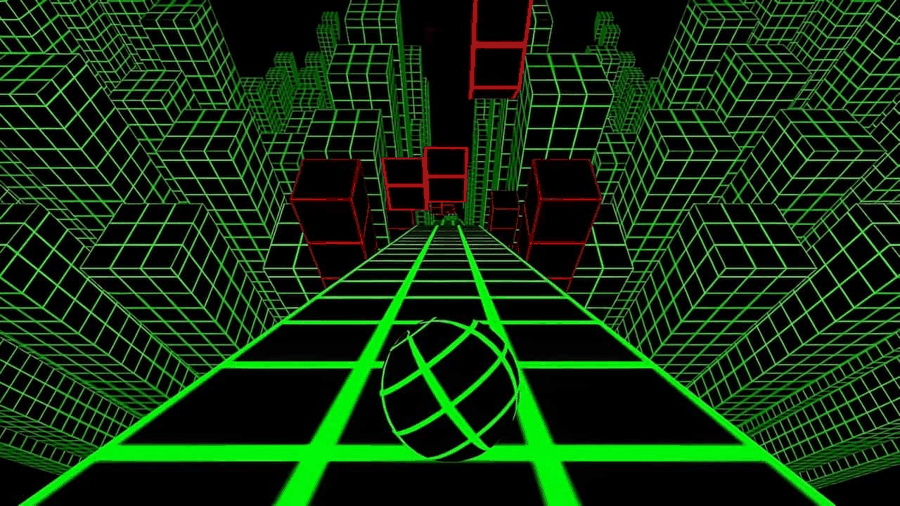
Separate the poster from the running scene
The cover image stays still before Play. A successful handoff replaces it with the game’s own scene or start screen. If you only see the same still image, describe that precisely; if the cover disappeared and left a dark area, describe the later stage instead.
A short report that can be investigated
Include the device, browser, game name, last visible stage, and whether the one fresh attempt changed anything. Do not send passwords, private access tokens, or a long list of settings you did not actually change. A precise observation helps more than “nothing works.”
Network rules and managed-device restrictions may prevent play even when the article is reachable. Use a permitted device or connection. The guide cannot establish a hidden policy from a blank rectangle alone; keep the observed message separate from a suspected explanation.