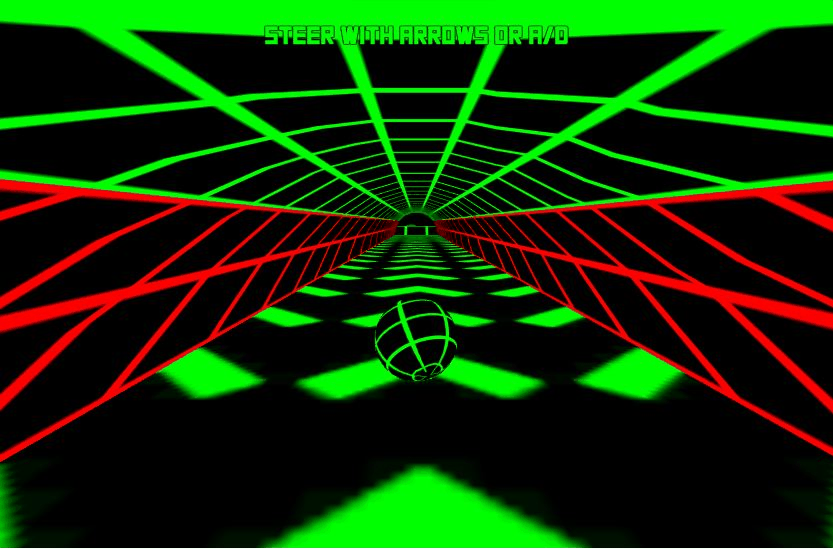
The page adapts to a phone or tablet, but the original game here uses keyboard steering. This site does not add a touch control pad. Check the input method before spending time adjusting the screen.
📱Layout and input are separate checks
What each setup establishes
Setup
What it can help with
What still needs checking
Touchscreen only
Opening the page, Play, and display buttons
There are no supplied on-screen steering arrows.
Compatible physical keyboard
Potentially sending the original steering keys
The browser and game must actually receive them.
Landscape orientation
More horizontal space for the player
Rotation does not create a new input scheme.
Fullscreen or expanded view
A larger game panel where supported
Graphics support and keyboard steering remain separate.
Recognize the original before testing controls
The original Slope prompt calls for keyboard arrows or A/D.
The control prompt matters more than the screen shape
A tap on Play can open a game without providing a way to steer it afterward. The in-game instruction is the relevant clue here: keyboard directions. If you are comparing a mobile app or another Slope title, check its own input prompt instead of assuming it matches this build.
Choose a view after confirming an input
↕️
Portrait view
The page stacks its content and local navigation for a narrow display. The game still keeps its normal proportions, so the play area is smaller. Scroll the article normally when you are reading rather than trying to stretch the game into a tall shape.
↔️
Landscape view
More width can make the floor easier to inspect. Browser controls and the device’s available height may still limit the view. Set the orientation before the run so a rotation does not interrupt the route you are watching.
Use the player’s Fullscreen control where it is available. A device may use a browser-specific exit gesture. Follow its on-screen hint; do not assume a physical Escape key exists.
If you have an external keyboard
Connect a supported keyboard
Use the device’s normal supported accessory connection. Accessory compatibility belongs to the device and operating system; it is not proof of game compatibility.
Load, then focus the game
Press Play, wait for loading, and tap inside the running play area. Test arrows or A/D rather than typing into a field elsewhere on the page.
Observe the result
If the keys scroll the page or trigger device behavior, the game may not be receiving them. If the scene stays blank, input is not yet the issue. Diagnose the actual stage instead of changing several settings at once.
Choose a setup that matches the task
If you cannot deliver the steering keys on a phone, use a permitted setup with a working physical keyboard for the original game. Keep this guide open on the phone if useful; reading a route lesson does not require launching its player on the same device.
You can still read every guide on a phone without opening the game. Use the first-session sequence to prepare, the graphics preflight for technical checks, or the game directory to inspect another title’s listed control family. A different game’s touch input must be checked on its own terms.