Normal player
The home player shares the article’s width and keeps a 16:9 game area. Use this when you want the guide and page navigation close by. A short window may need ordinary page scrolling to show the entire panel.
A larger view can make the platform edges easier to see. Use the player’s own Fullscreen button before a run, and keep the browser’s exit instructions in view the first time you open it.
The home player shares the article’s width and keeps a 16:9 game area. Use this when you want the guide and page navigation close by. A short window may need ordinary page scrolling to show the entire panel.
The Fullscreen button asks the browser to expand the player. Browsers require a user action and can decline the request. Follow the exit hint the browser displays rather than assuming every device uses the same shortcut.
If the native request is unavailable or fails, the site uses a larger overlay inside the browser. Its button changes to Exit expanded view. This fills more of the page without becoming the browser’s native fullscreen mode.
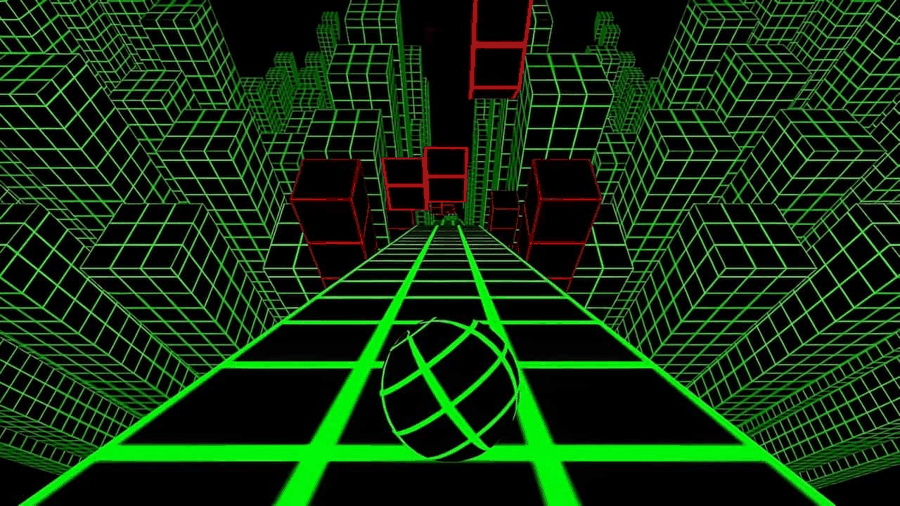
Fullscreen does not add a jump button, touch arrows, or a new steering method. It also does not guarantee smoother performance. More visible area may help you inspect a route, while the device still has the same graphics and input limits.
A phone can show a larger landscape panel and still lack a usable keyboard. See the mobile guide for that distinction, and performance checks if expansion changes how smoothly the game runs.
Try the button from a direct click or tap rather than expecting automatic fullscreen when the page opens. If the browser keeps the page in its normal view, use the available expanded view and its exit button. Device or administrative restrictions may still limit either behavior.
Do not confuse the browser’s whole-window shortcut with the site’s player button. The former changes browser chrome; the latter targets the game panel. Neither changes the original Slope controls.