Sound and quiet play in Slope
A silent run can be playable, and a visible game does not guarantee audible output. Check the audio path in separate steps instead of treating every missing sound as a loading failure.
Trace the sound from game to speakers
Use an audio setting only if the running game actually displays one.
Check whether the tab or site is muted and whether sound needs a user action.
Check the selected output, volume, and connected headphones.
Browser autoplay rules can affect audible media and Web Audio. A click inside a game can matter, but it is not a universal “restore sound” command. The exact behavior depends on the browser session and the game’s own audio handling.
Choose the control you can actually see
| Control | What it affects | Useful caution |
|---|---|---|
| Visible game audio option | The game’s own audio setting | Do not assume a particular icon or hotkey exists in every title. |
| Browser tab/site mute | Sound from the selected tab or site | Its label and location depend on the browser. |
| Device volume/output | The selected system output | A connected headset may be the active destination. |
| Reset player on original Slope | Reloads the home page and ends the current runtime | It is a session reset, not a reversible in-game mute. |
| Close game on a related title | Removes that player frame | Opening it again starts a fresh player session. |
Set up quiet play before the run
Choose the scope
If only this tab should be quiet, use the browser’s tab or site sound control where available. If all output should be quiet, use the device control.
Start and verify
Open the game through Play, then check the actual audio state before a demanding section. Do not wait for a loud event to discover which output was selected.
End the session cleanly
Use the shown player control when you want to stop the runtime. Reset player ends original Slope by reloading; Close game removes a related game’s frame. Read the label before pressing it.
The picture and sound are different signals
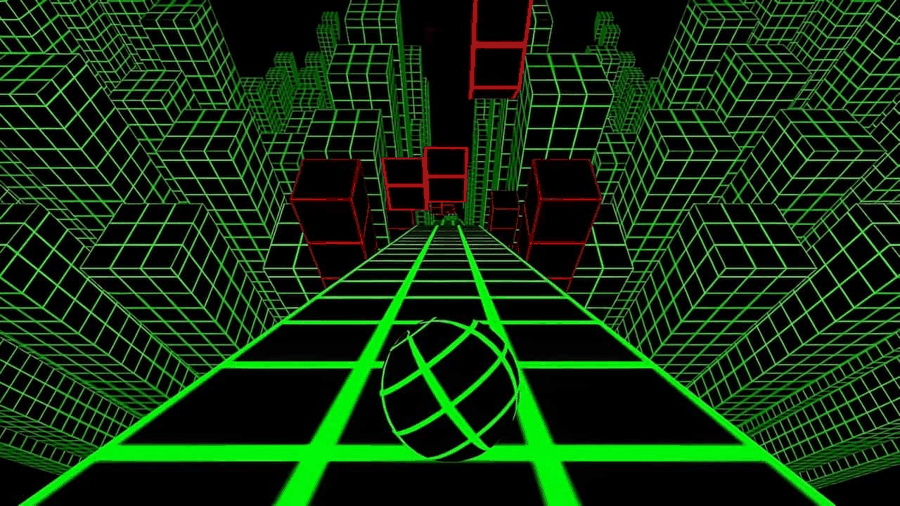
A visible scene is not an audio test
First check whether the visible game accepts steering. If it does, keep that session open while checking the tab’s mute state and the selected speaker or headset. If no scene appears, start with loading or graphics before treating the session as an audio-only fault.
Use blank-scene diagnosis or loading stages when there is no usable picture. The audio path alone cannot establish that rendering completed.
If expected sound remains absent
The tab is unmuted, but I hear nothing.
Check the device output and volume, including connected headphones. Interact with the loaded game normally. If the game exposes its own audio option, inspect that too; do not assume the browser control changes the in-game setting.
Does this site promise a sound toggle inside Slope?
No particular game icon or mute key is documented here without an observed control. Use the visible game interface or the browser/device controls that are actually available.
What should an audio report include?
Name the game, whether the scene and steering work, the mute controls you checked, and the selected output. Use Contact for a reproducible page issue. Do not include private account or device identifiers.